Store
The EPESI Store is a place to go when you want to extend your EPESI with additional functionalities. There you can find custom and premium apps, obtain licenses for them, and download their contents. These apps are extensions to the core CRM functionality, that address specific needs of different kinds of businesses.
Access the Store
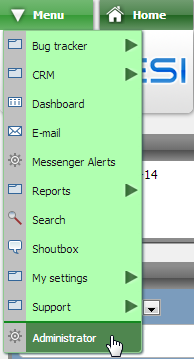
You can browse and obtain apps in the Store directly from your EPESI, provided you have a Super Administrator clearance. To access it, go to Administrator.
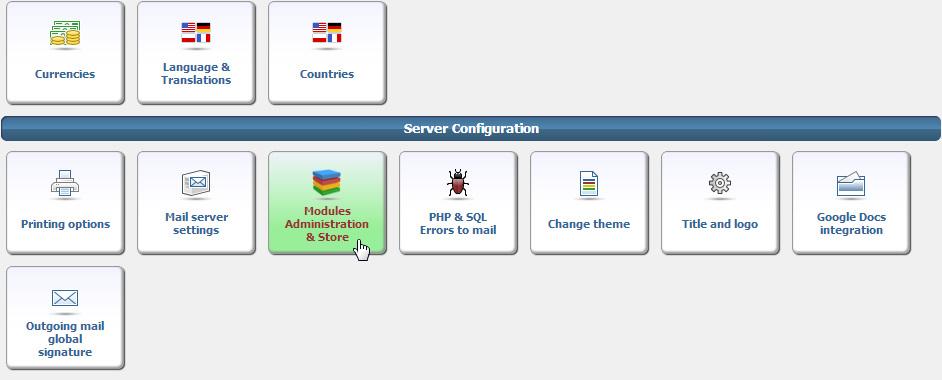
Then choose Modules Administration & Store
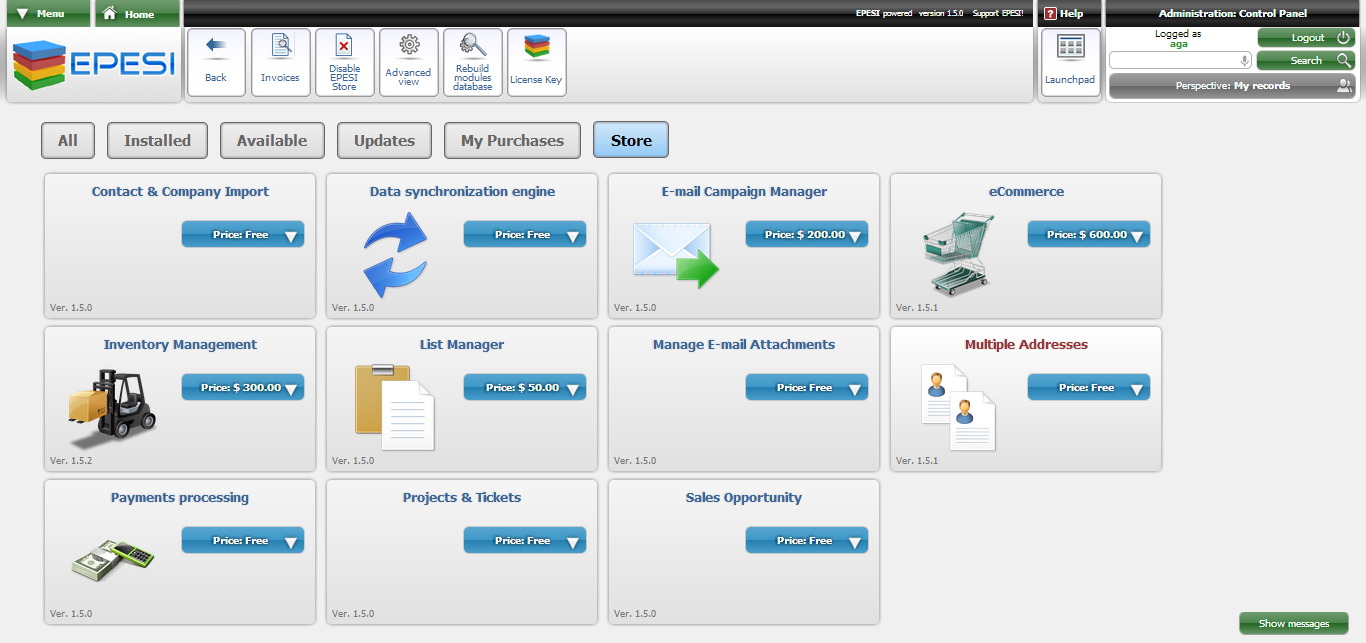
This will bring you to the EPESI Store, showing every module you have — installed or available — as a card with an install-state dropdown (Installed / Optional), plus tabs to filter by All / Installed / Available / Updates / My Purchases / Store:
Installing New Apps
Downloading and installing free apps is simple — pick a module's dropdown and choose Install. The app's dropdown will change to Installed once it's done, and it moves into the Installed tab.
For paid apps, the dropdown shows a price and an Obtain license option, which walks you through payment (currently via PayPal) and adds the app to My Purchases, from which you download and install it the same way as a free module.
The purchase flow itself (checkout, order confirmation) isn't screenshotted here — capturing it would require an actual transaction. If you're evaluating a paid module, the Store's own Obtain license flow will show you current pricing and payment steps directly.
If for any reason you would like to remove an app, select Uninstall from its dropdown. Uninstalling doesn't delete any data created by the module.