Note: the current Epesi UI (AdminLTE theme) replaced the old horizontal menu bar with a left sidebar — the navigation concepts below (menu, home, about, module indicator) still exist, just relocated. Screenshots updated August 2026 to match.
The left side of the screen has a navigation sidebar that contains:

Menu
The sidebar lists every module you have access to, always visible rather than tucked behind a dropdown. Related modules are grouped — click a group like CRM to expand its submenu.
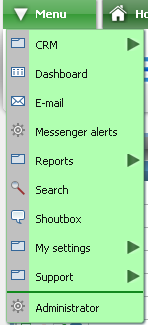
To get to your most-used modules faster, you can:
- build a Quick Access menu,
- customize the icons shown in the Dashboard's Action Bar, and/or
- pin the module to the Launchpad.
Configure this under Menu → My Settings → Control Panel → Quick Access.
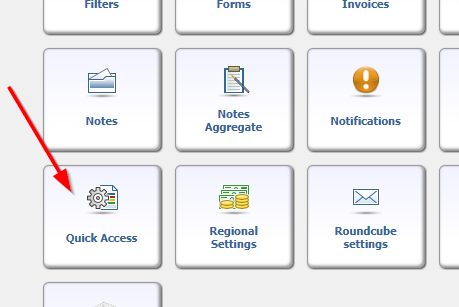
Check the box next to each module you want quick access to, then click Save in the Action Bar. How many icons fit in the Action Bar depends on your screen size — a 1024×768 display fits about five, on top of the permanent Home and Launchpad icons.
Home
Click Dashboard in the sidebar to return to your home page. Dashboard is your home page by default; to use a different screen instead, go to that screen and click Menu → My Settings → Set home page.
About
About now lives under Support → About in the sidebar. It shows your current Epesi version, license (MIT), and the full list of project and translation contributors.

Module indicator
The page header, next to the sidebar toggle, shows which module you're in — an icon plus the module or action name (for example, "Dashboard"). It updates as you browse, view, or edit records.
