Click2Fill

Click2Fill speeds up filling out any form, so you don't have to enter each field's value by hand or copy/paste one at a time. Paste a block of text into the window above the form, and Click2Fill splits it into individual words, each shown as its own button. Click a button to select its value, then click the field you want to fill — useful for creating a new contact by pasting name, address, and other details straight from an e-mail signature.
Let's say you want to create a record for a company and contact from this sample email:
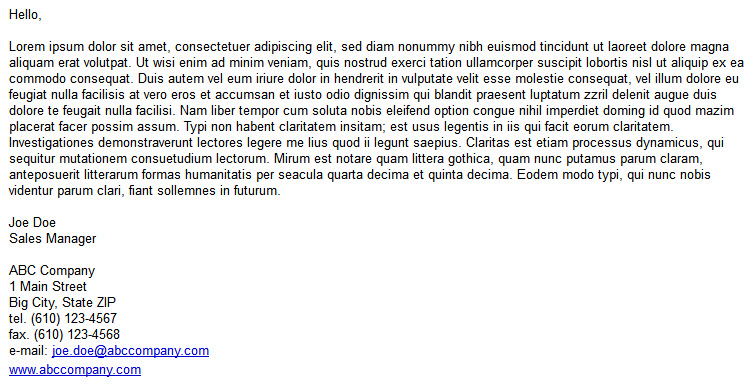
- select the entire text containing contact's and company's data and copy it into a clipboard:
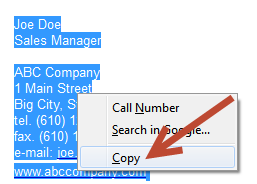
We will use a feature here that allows creating both: new contact and new company record in one step
- go to Menu > CRM > Contacts and click on 'Add new' button. When the form opens click on Click2Fill button to show the paste area and paste (CTRL+V) your clipboard text there:
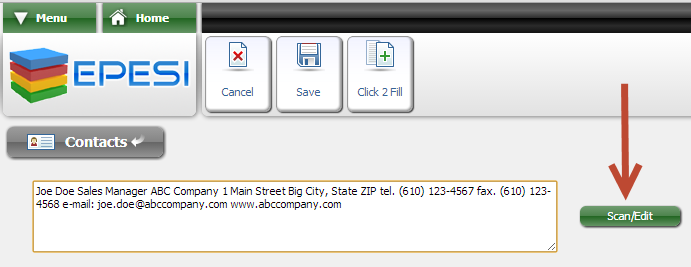
- click on Scan/Edit button to generate buttons and fill out the form by clicking on them and pasting into appropriate fields. You can combine several buttons in any order to create a string. Clicking on a button again selects/deselects the element. The order of values in the string is indicated by the number:
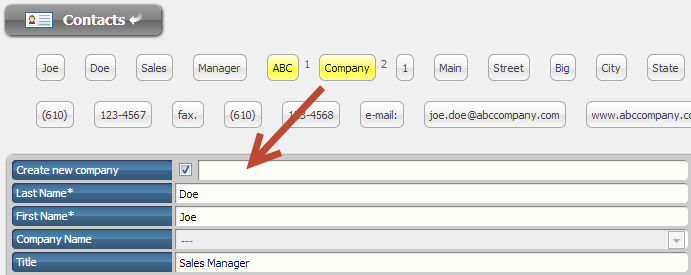
- IMPORTANT: Remember to select "Create new company" checkbox to activate the field and paste the company name there when creating a contact and company in a single step.
A complete filled form will look like this:
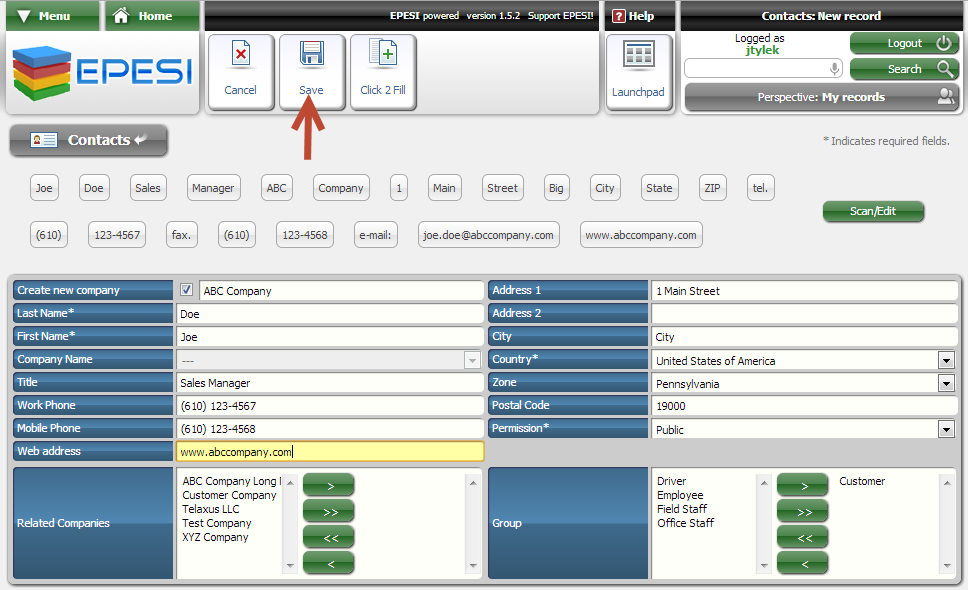
- Click on Save. Two (2) records were created at once: one for the contact:
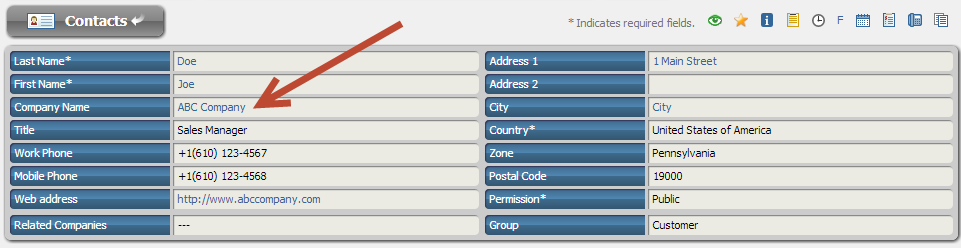
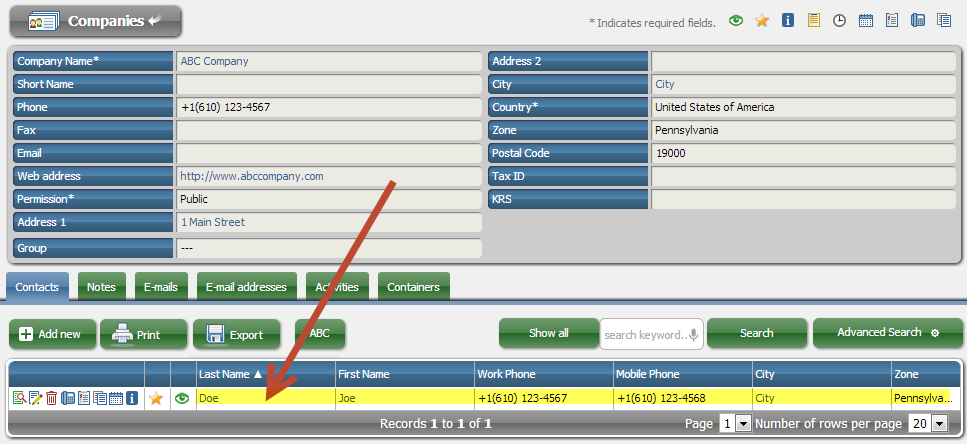
- and another one for the company. Both records are also linked: