Dashboard and Applets
Dashboard
The Dashboard is your default home page, at the center of the screen, giving you a quick view of information gathered from across the system.
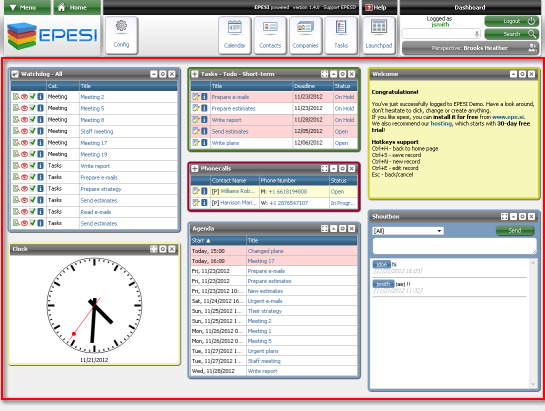
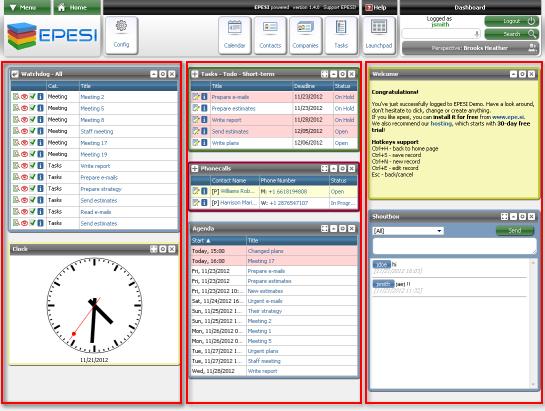
It's organized into 3 columns of smaller panels called applets — small frames that display information or act as simple mini-applications, usually tied to a specific Epesi module. Drag an applet by its title bar to rearrange it, and add or remove applets as you like.
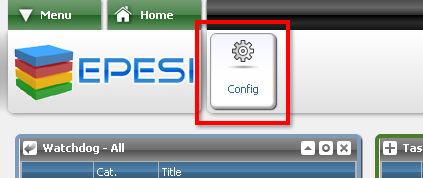
To add a new applet, click Config in the Action Bar, pick an applet type from the list, and set its options if it has any. You can add the same applet type more than once with different settings — for example, one Tasks applet showing your "new" tasks and a second showing tasks "in progress."
Applets
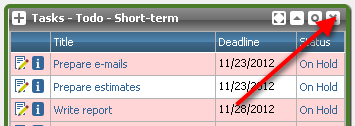
Every applet has its own options, columns, and buttons, but a few interface tools work the same way across all of them:
Fullscreen — opens the full module the applet is connected to. Not shown for applets that aren't connected to a module.
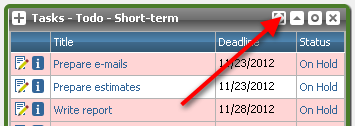
Toggle — switches the applet between its normal size and a collapsed view showing only the title bar.
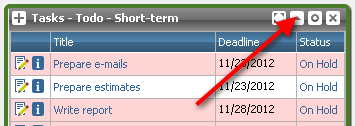
Configure — opens the applet's configuration screen, where you can change its options.
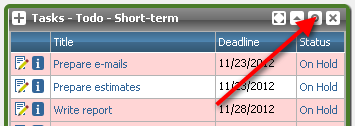
Remove — removes the applet from the Dashboard. This doesn't delete any underlying data, but it does discard the applet's own settings.