Event Details
Events carry more settings and information than fits in the schedule views. See it two ways: the quick Event Tooltip, or the full View Event interface.
Event tooltip
Hover the icon on any event frame, in any grid view, to see this tooltip.
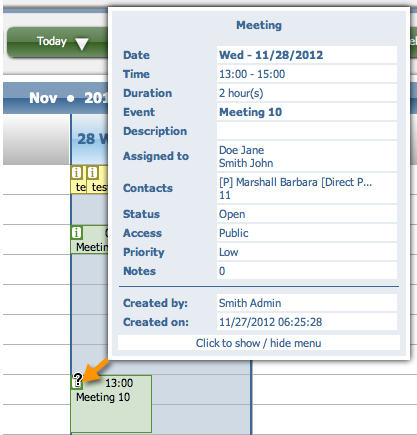
- Date — the day the event is scheduled for
- Time — start and end time
- Event — the event's title
- Description — more detail about the event
- Assigned to — people from your company directly involved in the event
- Contacts — customers, contractors, or others involved in or interested in the event
- Status — what stage the event is in
- Access — who can view or change the event
- Priority — how important the event is
- Notes — how many notes are attached
- Created by — who created the event
- Created on — when the event was created
View Event interface
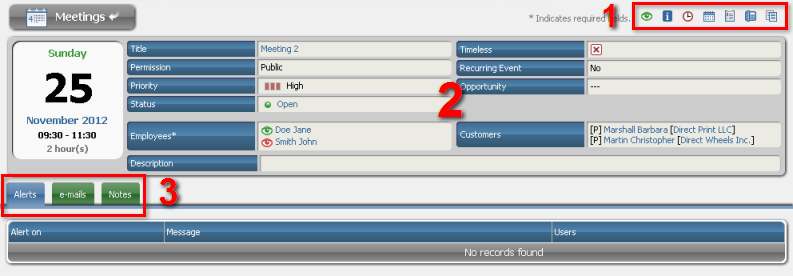
Open this from Agenda by clicking an event's title, or from any grid view by clicking an event frame's time panel or choosing View from its actions.
-
Quick actions for the event.
-
Event details:
- Title — the event's name
- Permission — who can access the event across the system
- Priority — how important the event is
- Status — the event's current stage. Click it to advance the status: Open → In Progress → Closed or Canceled.
- Employees — people actively involved from your company's side. A red eye icon means that employee hasn't seen the event's most recent changes.
- Description — full details about the event
- Timeless — whether the event has a specific time or not
- Recurrence — whether the event repeats
- Customers — people connected to the event who aren't taking an active role, or aren't part of your company
-
Notes, alerts, and e-mails attached to the event.
Event attributes
Three attributes are worth explaining in more detail: Access, Priority, and Status.
Access
Controls who can view and change the event:
- Public — anyone can view, read, and change it
- Public, Read-Only — anyone can view it, but only assigned users can change it
- Private — only assigned users can view or change it
Priority
How important the event is, shown as one of three colors on the event frame:
Low Priority:

Medium Priority:

High Priority:

Status
Tracks the event's progress through four possible stages:
Open:

In Progress:

Closed:

Canceled:

Recurrence
This icon on an event frame, or next to a title in Agenda, marks a recurring event — one scheduled to repeat on some regular basis, such as every Monday or the 14th of every month.
Open View Event for the full recurrence details:

- Recurrence interval — how often the event repeats:
- every day
- every 2nd/3rd/4th/5th/6th day
- once a week
- multiple times a week (e.g. Mondays and Thursdays)
- every two weeks
- every month
- every year
- Start date of the recurrence.
- End date of the recurrence.