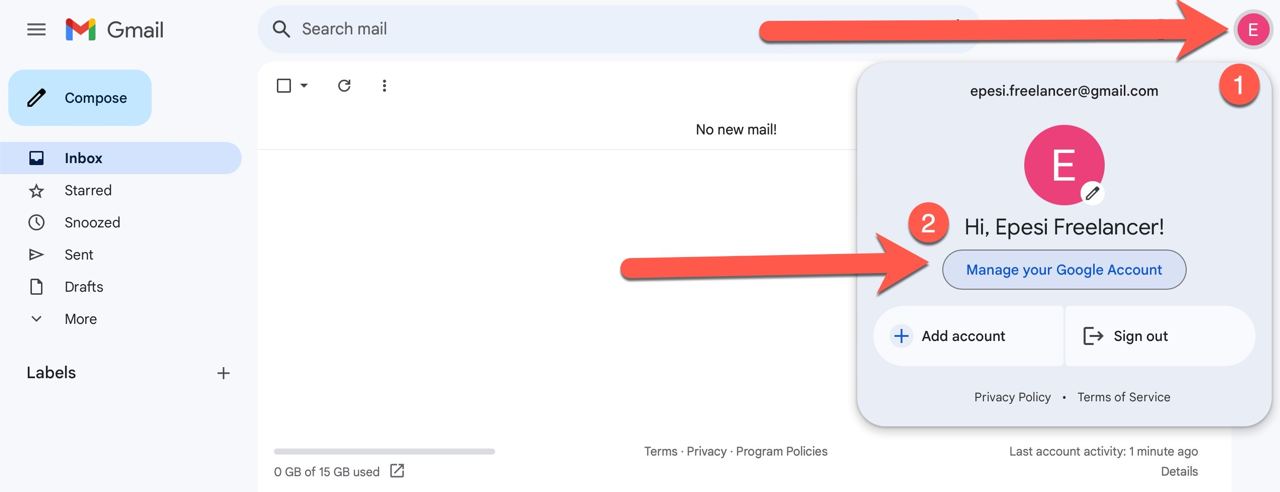
- Click your Gmail account icon, then Manage your Google Account.
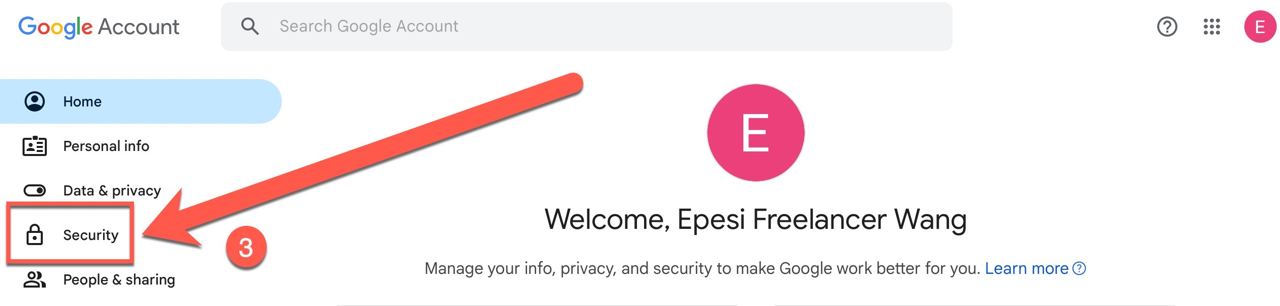
- Select Security settings.
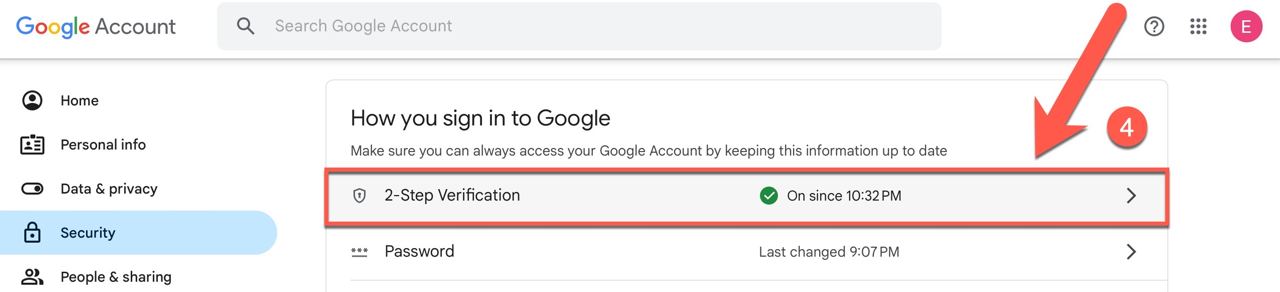
- Choose 2-Step Verification — turn it on first if it's currently off; app passwords require it.
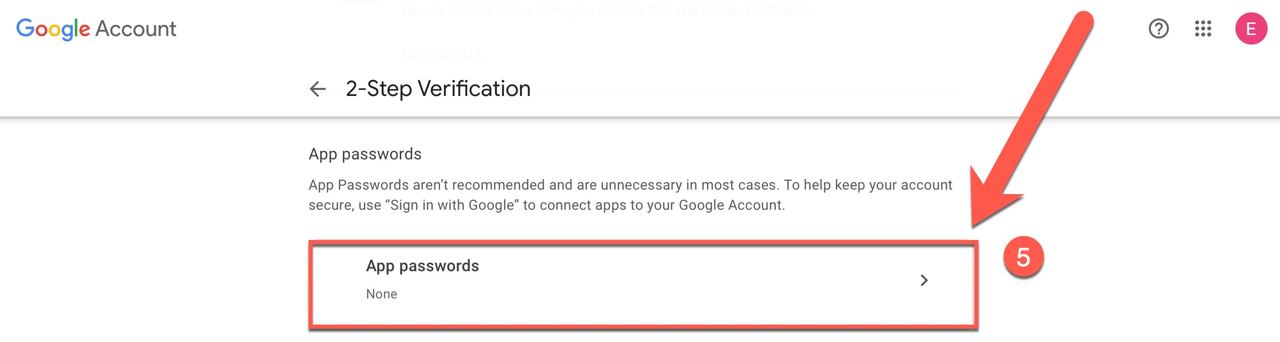
- Select App passwords.
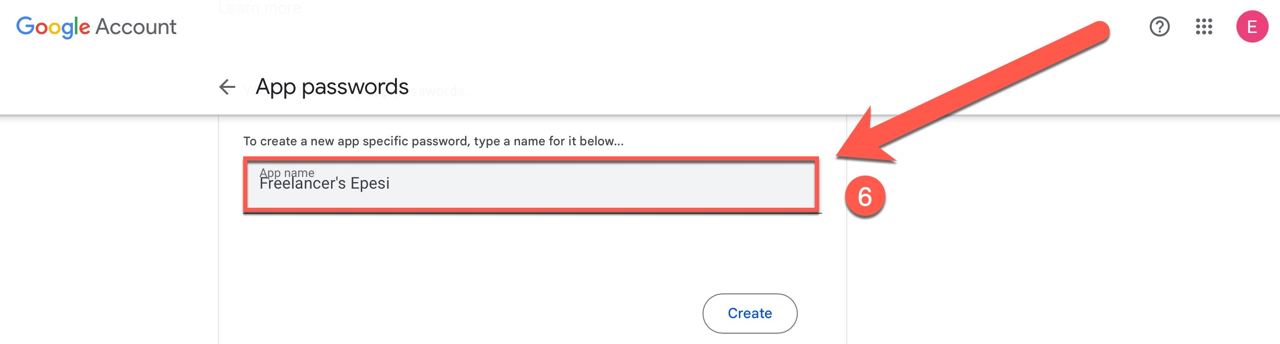
- Enter a name for the application and click Create.
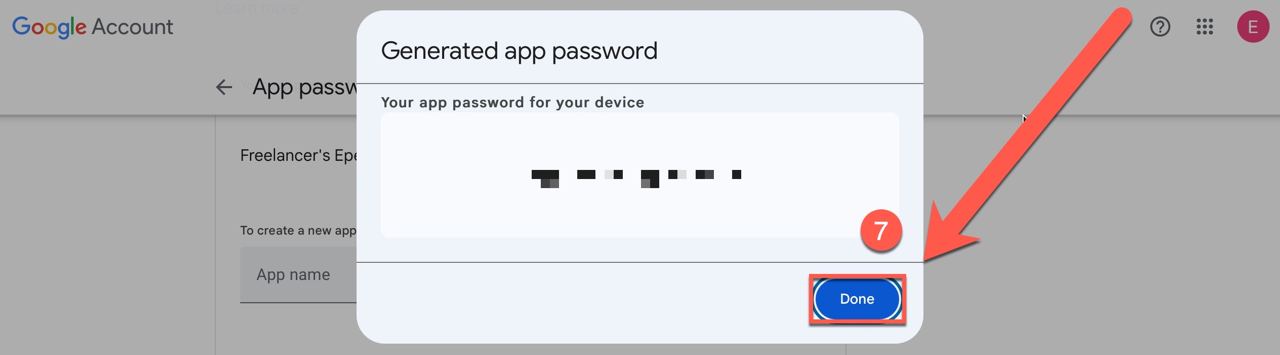
- Copy and save the generated password — you'll need it in the next step.
Mail Client Configuration
Epesi includes a customized version of Roundcube, a popular open-source webmail client, for managing your e-mail. It supports multiple IMAP accounts, an address book shared with Epesi's own Contacts, folder management, message search, and spell checking — plus Epesi-specific additions: a unified address book, e-mail archiving (see E-mail Management), and duplicate prevention.
To connect Roundcube, you'll need three things from your mail provider:
- the incoming IMAP server address
- the outgoing SMTP server address
- a password generated for third-party apps
Instructions for finding these are below, for Google Mail users and for Epesi Cloud mail users or other cPanel-configured providers.
Once you have that information, configure it in Epesi:
-
From the main Menu, choose My Settings, then Control Panel.

-
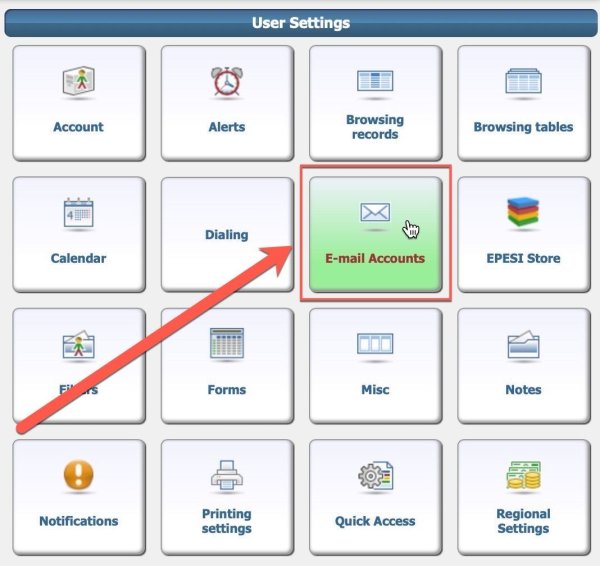
Under User Settings, select E-mail accounts.
-
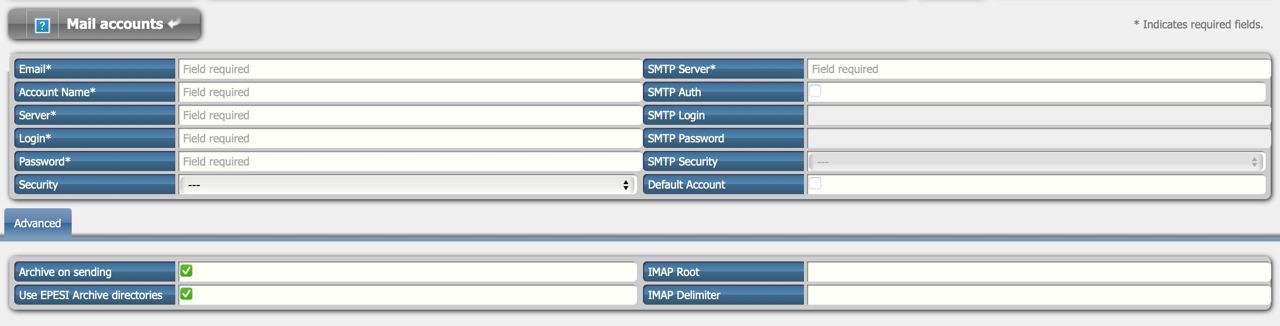
Enter the server details into the matching fields.
Stuck configuring your mail client? Ask on our forum or contact us for help.
Using Google Mail
- Find the incoming IMAP and outgoing SMTP server names at developers.google.com/gmail/imap/imap-smtp.
- Generate a third-party app password in your Gmail settings.
You're ready to fill in the Mail Client Configuration settings in Epesi. See the example below if you need it.
Epesi Mail Client Configuration Example using Google mail
| Description | Example | |
|---|---|---|
| (your e-mail address) | epesi.freelancer@gmail.com | |
| Account Name | (display name, preferably your e-mail address) | epesi.freelancer@gmail.com |
| Server (IMAP) | (Incoming connections to Google IMAP server) | imap.gmail.com:993 |
| Login | (your login, generally your e-mail address) | epesi.freelancer@gmail.com |
| Password | (Generated for third party apps) | |
| Security | SSL | |
| SMTP Server | (The outgoing Google SMTP server) | smtp.gmail.com:465 |
| SMTP Auth | YES | |
| SMTP Login | (your login, generally your e-mail address) | epesi.freelancer@gmail.com |
| SMTP Password | (Generated for third party apps) | |
| SMTP Security | YES | |
| Default Account | (Check it if this is your default Epesi account) |
Advanced options:
| Advanced | Description | Example |
|---|---|---|
| Archive on sending | (leave it on) | |
| Use EPESI Archive directories | (leave it on) | |
| IMAP Root | (for e-mail archiving work properly) | INBOX. |
| IMAP Delimiter |
Using our Epesi Cloud Email
- Incoming IMAP server:
mx.epesi.cloud:993 - Outgoing SMTP server:
mx.epesi.cloud:465 - Password: the same one as your Epesi Cloud e-mail account
You're ready to fill in the Mail Client Configuration settings in Epesi. See the example below if you need it.
Epesi Mail Client Configuration Example using Epesi Cloud mail
| Description | Example | |
|---|---|---|
| (your e-mail address) | ||
| Account Name | (display name, preferably your e-mail address) | |
| Server (IMAP) | (Incoming IMAP server for Epesi Cloud) | mx.epesi.cloud:993 |
| Login | (your login, generally your e-mail address) | |
| Password | (Use the email account’s password) | |
| Security | SSL | |
| SMTP Server | (The outgoing SMTP server for Epesi Cloud) | mx.epesi.cloud:465 |
| SMTP Auth | YES | |
| SMTP Login | (your login, generally your e-mail address) | |
| SMTP Password | (Use the email account’s password) | |
| SMTP Security | YES | |
| Default Account | (Check it if this is your default Epesi account) |
Advanced options:
| Advanced | Description | Example |
|---|---|---|
| Archive on sending | (leave it on) | |
| Use EPESI Archive directories | (leave it on) | |
| IMAP Root | (for e-mail archiving work properly) | INBOX. |
| IMAP Delimiter |
Enjoy!