E-mail Management
Epesi's built-in Roundcube mail client sends and receives e-mail, but it stays disconnected from your CRM records until you archive a message — this page covers archiving, and pasting archived e-mail onto any other record. If you haven't connected a mailbox yet, see Mail Client Configuration first.
Attaching e-mail to records
By default, e-mail archived from Roundcube can only be attached to a Contact or Company. The Manage E-mail Attachments module extends that to any kind of record — a task or phone call, for example.
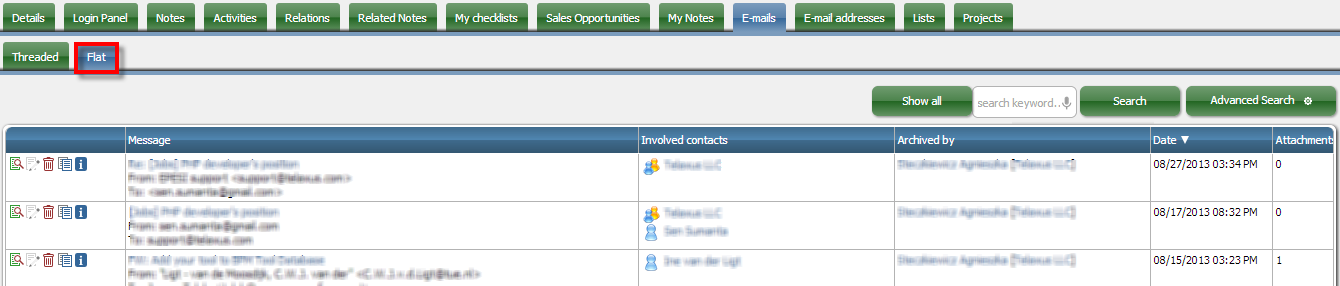
E-mails attached to a contact, shown in threaded view:

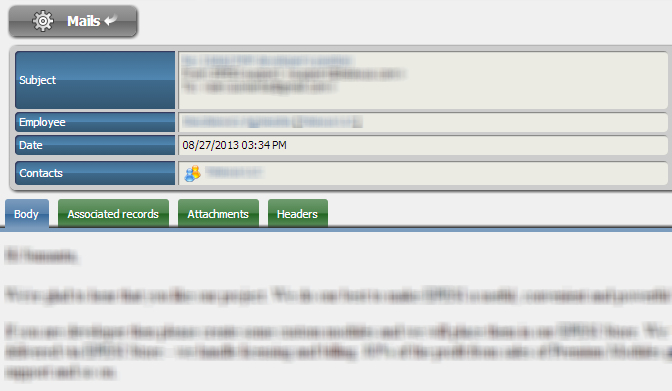
Viewing a single e-mail:
The archiving system
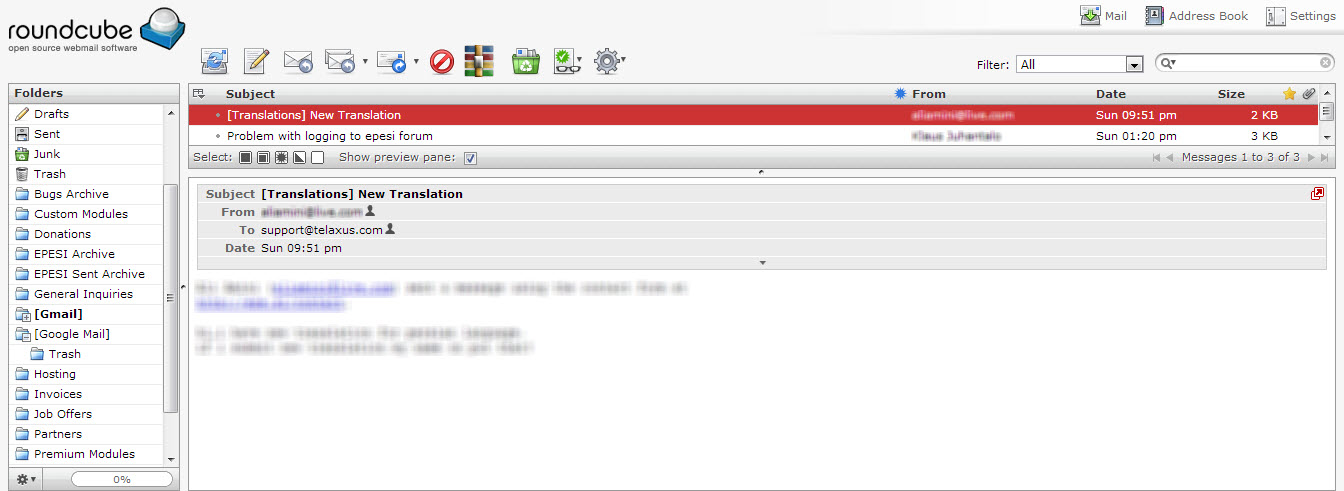
Mail that arrives in your personal mailbox isn't linked to any Epesi record — you can read, forward, reply to, or delete it exactly as you would in any mail client. To keep a copy in a contact's or company's history, archive it:
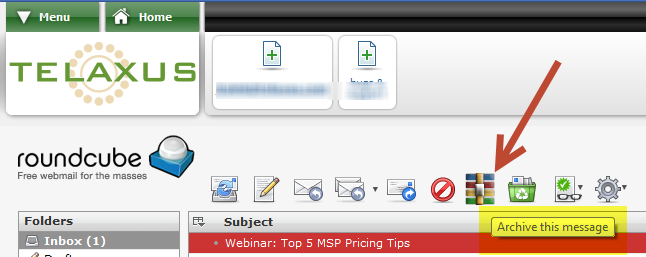
Archiving does three things behind the scenes:
- stores the e-mail as its own object in Epesi's database (the message text is stored directly; attachments are stored as files and linked to it)
- moves the message to the Epesi Archive folder, so it's still there if you need it from any other IMAP mail client
- scans the From, To, and CC addresses against your Contacts and Companies, and links the archived e-mail to every match it finds
The archived e-mail is a single object, referenced from every matching Contact or Company — not a separate copy per record.
When sending mail from within Epesi's Roundcube client, click the Archive icon to choose whether the sent message gets archived the same way, or sent as a normal, un-archived message. Sent mail is kept separate from received mail (Epesi Archive vs. Epesi Archive Sent) so it's easy to tell what you sent from what you got.
When the sender is an existing contact
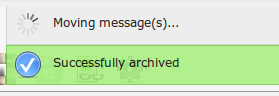
If the sender is already in your Contacts, archiving links the e-mail automatically. Click the archive icon and Epesi confirms the message was archived and moved.

When the sender isn't a contact yet
The first click on the archive icon will fail if the sender doesn't match any existing Contact:

Clicking archive a second time forces it through anyway — but the e-mail then won't be linked to any contact besides you (or anyone else it does match), so this isn't recommended. Instead, open another Epesi window, add the sender as a new contact, and then archive the e-mail — it'll link correctly.
Pasting archived e-mail onto a record
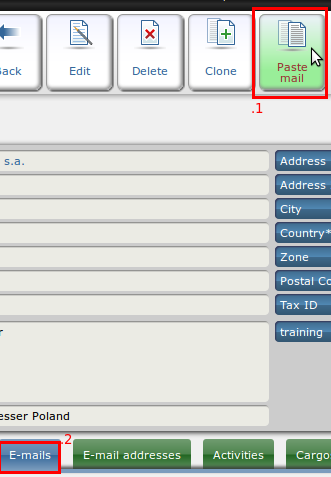
Once an e-mail is archived, you can paste it onto any other record. Open the record, switch to its E-mails tab (2), and click the Paste mail icon (1):
Confirm in the dialog that appears:
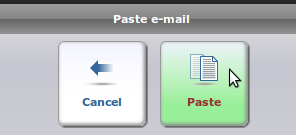
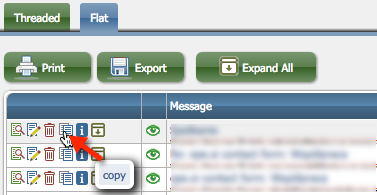
By default, "Paste mail" pastes only the most recently archived e-mail. To paste or link an older message, find it first and click its copy icon to place it on the clipboard, then switch to the target record's E-mails tab and click Paste mail.