Clearing Browser Cache
After Epesi is upgraded, your browser sometimes keeps using old cached files (JavaScript, CSS) instead of the new ones — which can leave the layout looking broken or parts of the application not working right. Clearing your browser's cache forces it to load the current files and fixes this.
Fastest fix: most browsers open the "clear browsing data" dialog directly with a keyboard shortcut:
- Windows/Linux: Ctrl+Shift+Delete
- Mac: Cmd+Shift+Delete
In the dialog, make sure Cached images and files (sometimes just called "Cache") is checked, then confirm. Below are the manual menu paths for browsers where the shortcut above might not apply.
Chrome (and other Chromium-based browsers: Edge, Opera, Brave)
- Click the three-dot menu, then More tools → Clear browsing data
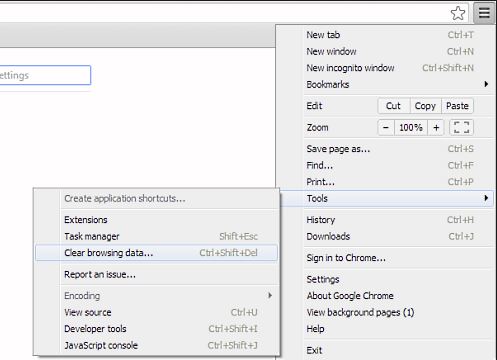
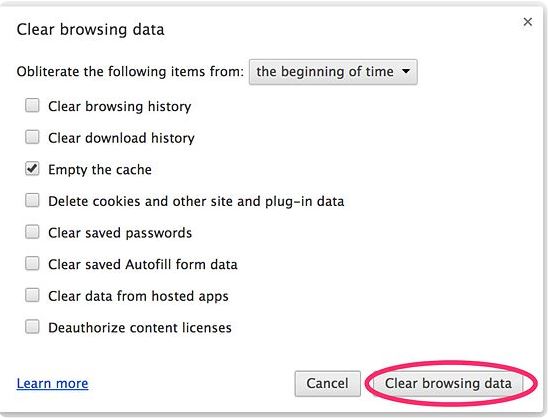
- Check the type of data you want to remove — at minimum, Cached images and files
- Set the time range to All time to clear everything
- Click Clear data
Firefox
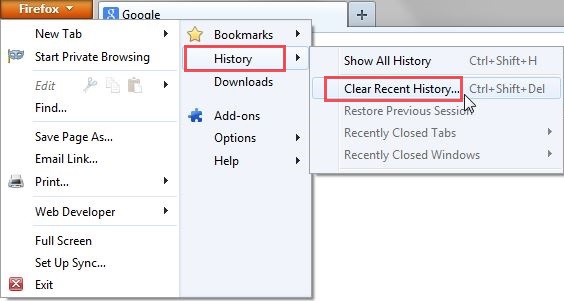
- Click the menu button in the top-right corner
- Select History → Clear Recent History...
- Set Time range to clear to Everything
- Expand Details and check only Cache
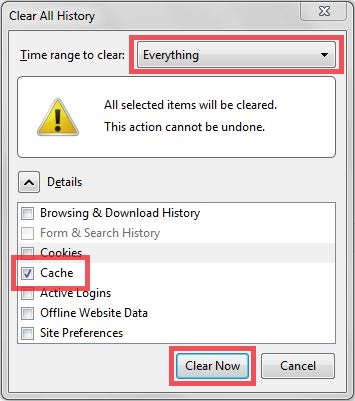
- Click Clear Now